
Blog
How do you split a PDF into separate files?
By Gabriel Kadiwa, Founder & Full-Stack Developer
Open the PDF in a split tool, choose where each new file should start, and download the pieces. Ours shows every page so you can cut where you click, or split by page numbers, every few pages, or one file per page.
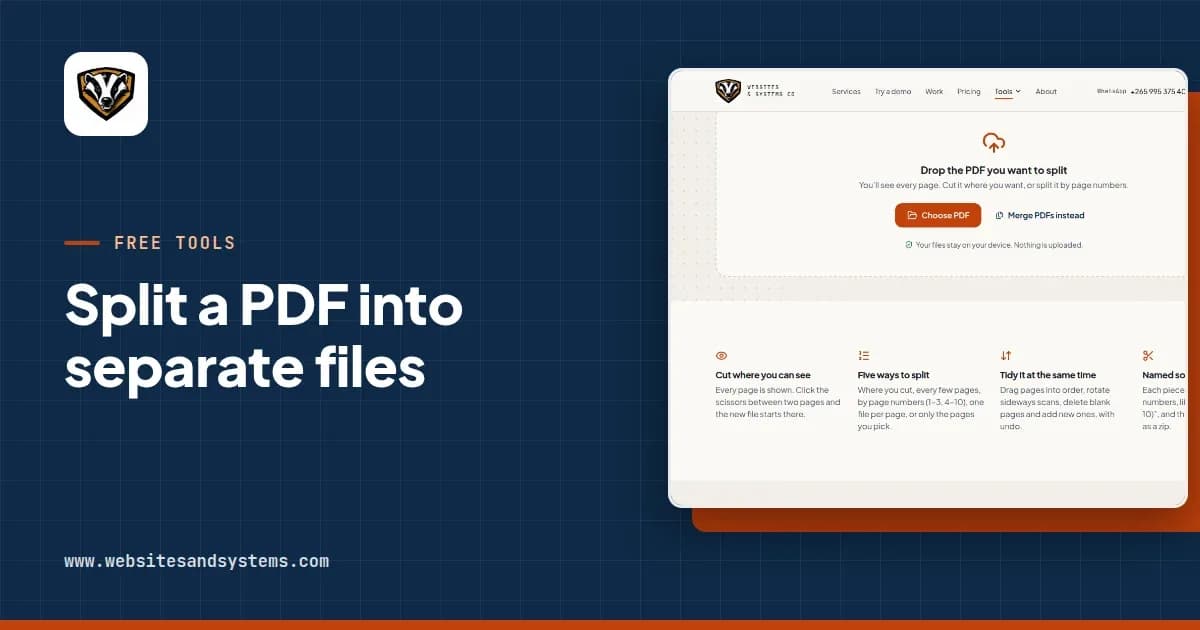
Open the PDF in a split tool, choose where each new file should start, and download the pieces. Our free Split PDF tool shows every page so you can cut where you click, or split by page numbers, every few pages, or one file per page. It runs in your browser, so the PDF is never uploaded.
When you need to split a PDF
It usually comes down to one of these:
- A scanner put a whole stack of documents into one PDF, and each needs to go to a different place.
- A long report or statement needs only a few pages sent on.
- An upload form has a size limit, or wants each document separately.
- You need one page per file, like one payslip per employee.
Five ways to split
Open the Split PDF tool, drop the PDF on it, and pick how to split under How to split:
Where I cut. Every page is shown. Click the scissors between two pages and the next file starts there. Pages are tinted by the file they'll end up in, so you can see the result before you download. This is the quickest way when you can see where each document starts, like a scanned stack.
Every few pages. A new file every 2, 5 or 10 pages. Handy for forms that are always the same length.
By page numbers. Type ranges separated by commas: 1-3, 4-10, 11- gives three files, the last one running from page 11 to the end.
One file per page. Every page becomes its own PDF.
Only the pages I pick. Tap the pages you want and download them as one new PDF. This is how you take a few pages out of a long document.
Each piece is named with its page numbers, like "statement - part 2 (pages 4-10).pdf", and several pieces download together in a zip.
Tidy it while you're there
Scans often come out sideways, upside down, with blank pages or in the wrong order. Before you split, you can:
- Drag pages into a new order, or tap pages and use the arrow buttons (easier on a phone).
- Rotate a page, or every page you've picked.
- Delete blank or unwanted pages.
- Add a blank page where you need one.
- Undo anything with the Undo button or Ctrl+Z.
Does splitting lower the quality?
No. Pages are copied across as they are, not redrawn, so text stays sharp and searchable, and web links still work.
Is it private?
Yes. The PDF is opened and split on your own device. Bank statements, payslips and medical letters never leave your computer or phone.
Protected PDFs
If the PDF is protected against changes, it can't be split here. Open it in a PDF reader, save or print a copy without the protection, and split that.
The opposite job
To join PDFs instead, use Merge PDF. You can do both at once: add more files with Add PDF, arrange the pages, then split the result.
Splitting the same documents every month?
If your office splits a monthly batch of statements or payslips by hand and emails each one, a business management system can make each document separately and send it to the right person.
Book a free 30-minute discovery call and tell us what you split.