
Blog
How do you turn a Word document into a PDF without Word?
By Gabriel Kadiwa, Founder & Full-Stack Developer
Open the .docx in a browser-based converter, check the pages, and download the PDF. Our free Word to PDF tool shows every page first, lets you fix a typo on the page, and never uploads your file.
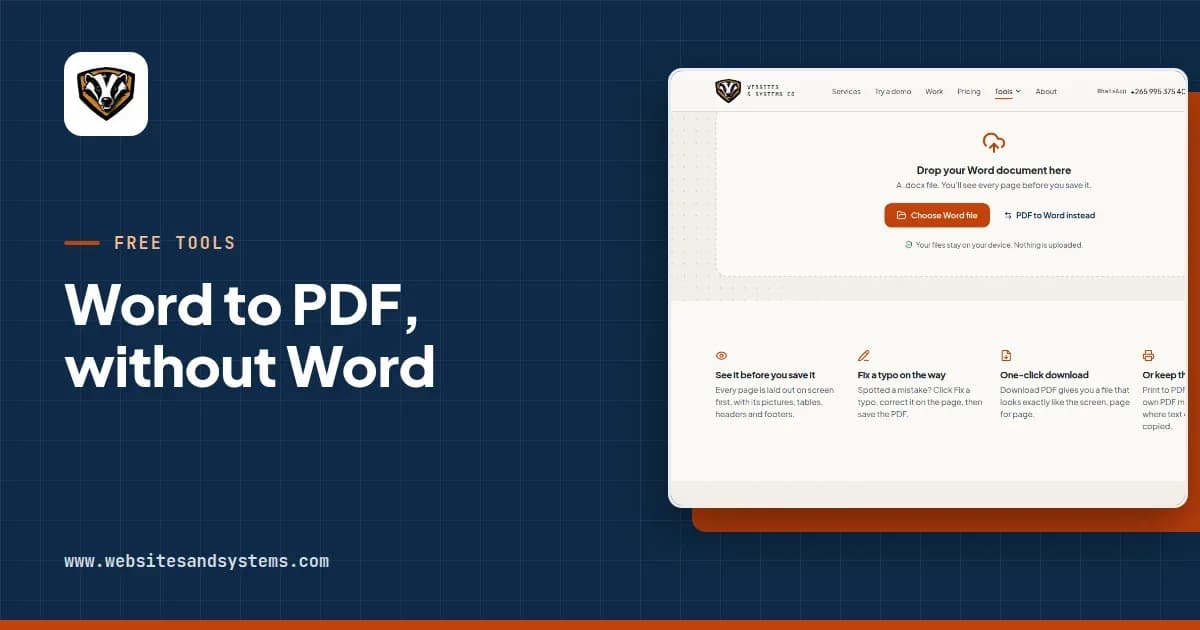
Drop the .docx file on a browser-based converter, check the pages, and download the PDF. You don't need Word, an account or an app. Our free Word to PDF converter lays out every page on screen before you save, lets you fix a typo on the page, and does it all on your own device, so the document is never uploaded.
Why PDF, and why it matters who converts it
A PDF looks the same on every phone and computer. A Word document doesn't: it depends on the fonts and the version of Word the reader has. That's why CVs, quotes, invoices, letters and contracts should go out as PDF.
Most free converters upload your document to their server, convert it there, and send it back. For a CV that's probably fine. For a tenancy agreement, a payslip or a client contract, you're handing personal details to a company you know nothing about. Our converter reads the file in your browser instead.
How to do it
- Open the Word to PDF converter and drop your .docx on it.
- Scroll through the pages. Pictures, tables, headers, footers and page breaks are laid out as in Word.
- Spotted a mistake? Click Fix a typo, click into the page and correct it. The change goes into the PDF only, not your Word file.
- Click Download PDF.
Download PDF or Print to PDF?
There are two buttons, because there are two kinds of PDF.
Download PDF draws each page and puts it in the PDF exactly as you see it. One click, and it looks identical to the screen. The catch: the text is part of the picture, so it can't be selected or searched, and the file is bigger. Choose Smaller file in the quality menu if you're emailing it.
Print to PDF uses your browser's own PDF maker. Choose "Save as PDF" as the printer. The text stays real text: searchable, selectable, and readable by screen readers and job application systems that scan CVs. The file is smaller too.
For a CV you're uploading to a jobs site, use Print to PDF. For a document that just needs to look right, Download PDF is quicker.
Why the PDF might differ slightly from Word
Word uses the fonts on the computer that made the document. If your device doesn't have the same font (Calibri on an Android phone, for example), a similar one is used, and that can move a line or a page break. Documents saved recently by Word keep their own page breaks, which helps.
If the layout must be exact, convert on a computer that has the fonts, or ask the person who wrote it to send a PDF.
Old .doc files
The converter reads .docx, the format Word has used since 2007. For an older .doc file, open it in Word, Google Docs or LibreOffice, save it as .docx, and convert that.
Going the other way
Got a PDF you need to change? The PDF to Word converter turns it back into a document you can edit. To change a few words or sign it without converting, use the PDF editor.
Making the same documents again and again?
If you're filling in the same Word template for every customer, then saving it as PDF and emailing it, a small system can do that for you: fill in the details once, and the PDF is made and sent. That's the kind of custom business system we build.
Book a free 30-minute discovery call and show us the document you keep remaking.